Install on Windows
Download, open, and get past one warning from Windows. No administrator password needed.
- About 2 minutes
- Windows 10 or 11
-
Download the file
Nearly every laptop uses the first one. Pick ARM only if yours runs on Snapdragon.
Your browser may hold the download back, because few people have downloaded this version yet. In Edge, point at the file, click ⋯, Keep, Show more, then Keep anyway.
Version 0.1.0-alpha.37
-
Open the installer inside the zip
Open the zip you downloaded, then double-click the installer (the .exe) inside it.
The installer comes in a zip so browsers hold it back less often.
-
Get past the Windows warning
If a blue Windows protected your PC window appears, click More info, then Run anyway.
Windows warns because this version is new and few people have installed it. After that, the app installs and opens by itself.
-
Sign in with your ITB account
Open Edunex Plus, click Get started, then connect Edunex. ITB's Microsoft page opens, the same one you see when you sign in to Edunex.
Just once. Edunex and SIX both connect from that one sign-in, and your password never reaches Edunex Plus.
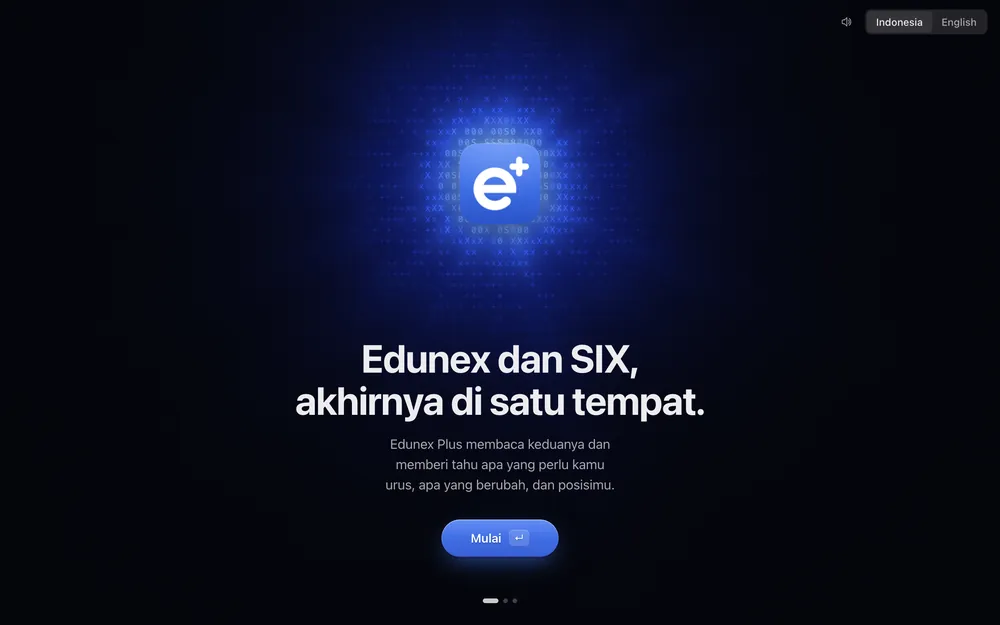
Pictures are drawings. Your device may look a little different.
If something goes wrong
It says “Smart App Control blocked this app”
Smart App Control only runs apps it recognises, and has no “Run anyway”. Turning it off (Windows Security › App & browser control) removes that protection for every app, so the safer choice is to wait until the installer is signed.
Chrome says “Suspicious download blocked”
Open Downloads (the arrow at the top right), choose the file, then Download suspicious file.
Notifications don't show
Install with the installer, don't copy the folder. Windows shows an app's notifications only once it has a Start menu shortcut.