Install on Linux
There's a .deb for Ubuntu, Debian and Mint, and an AppImage for everything else.
- About 2 minutes
- Ubuntu, Debian, Mint or another distribution
- A keyring (GNOME Keyring or KWallet) so your sign-in is saved
-
Download the file for your system
Pick the .deb for Ubuntu, Debian and Mint. Pick the AppImage for anything else.
Version 0.1.0-alpha.37
-
Install the .deb
Open a terminal in the folder you downloaded to and run this line. Then open Edunex Plus from your apps menu.
The ./ before the file name matters: it tells apt to use the file.
sudo apt install ./edunex-plus_0.1.0-alpha.37_amd64.deb -
Or run the AppImage
Make it runnable, then open it.
On Ubuntu 24.04 and newer, an AppImage runs without Chromium's sandbox. Use the .deb there if you can.
chmod +x Edunex-Plus-0.1.0-alpha.37-x86_64.AppImage && ./Edunex-Plus-0.1.0-alpha.37-x86_64.AppImage -
Sign in with your ITB account
Open Edunex Plus, click Get started, then connect Edunex. ITB's Microsoft page opens, the same one you see when you sign in to Edunex.
Just once. Edunex and SIX both connect from that one sign-in, and your password never reaches Edunex Plus.
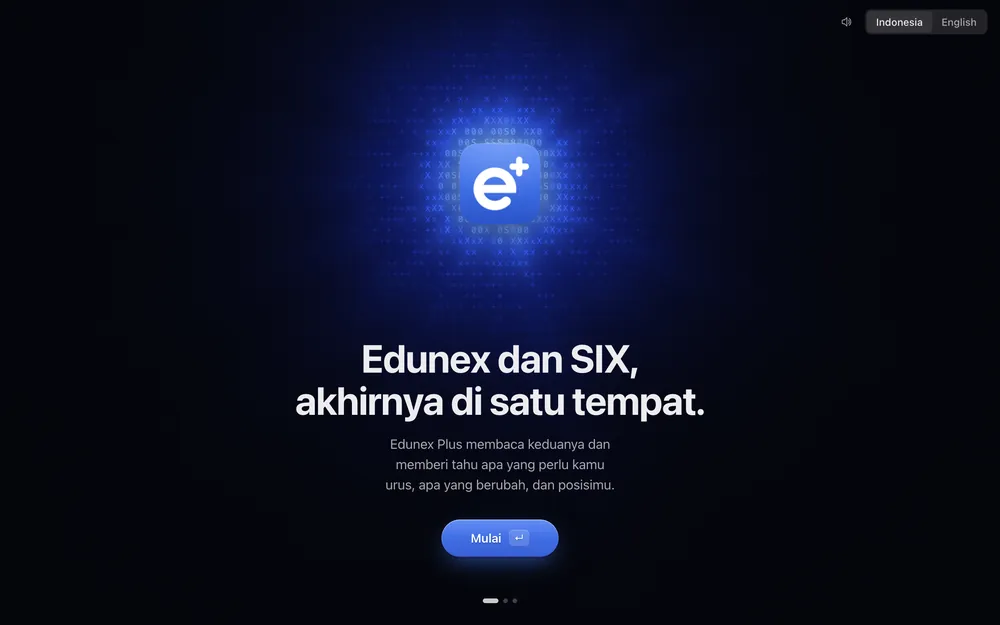
Pictures are drawings. Your device may look a little different.
If something goes wrong
The app asks me to sign in every time
Your system has no keyring yet. Install GNOME Keyring or KWallet, then sign in once more.
My laptop is ARM
The ARM files are on the release page: their names end in _arm64.deb and -arm64.AppImage.